Learnify LMS App
The Flutter app for students and instructors: what it does, how to point it at your site, rebrand it and publish it.
Item: Learnify LMS
What It Does
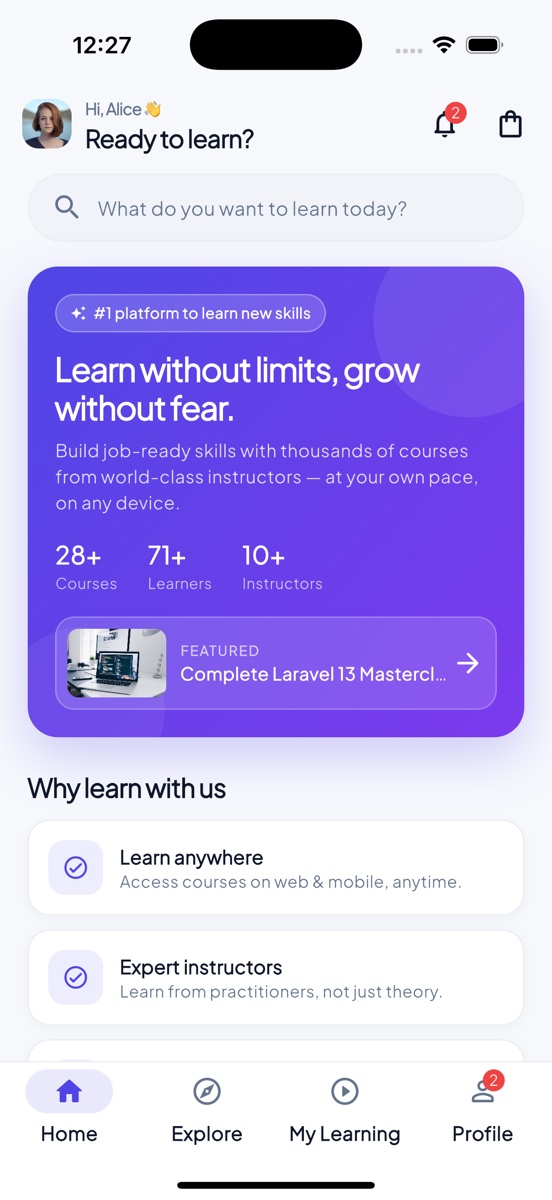
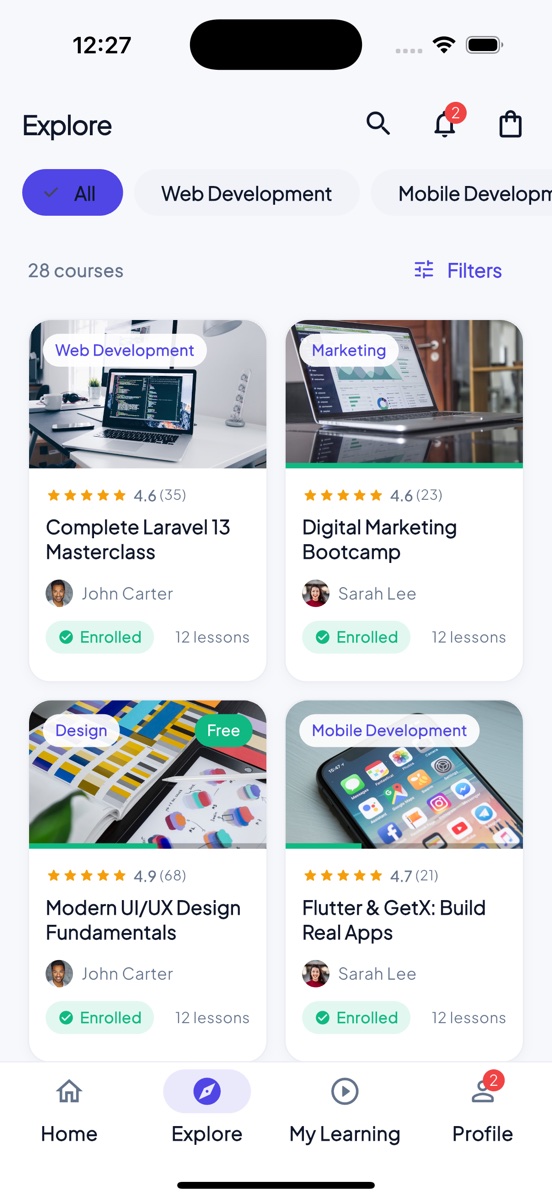
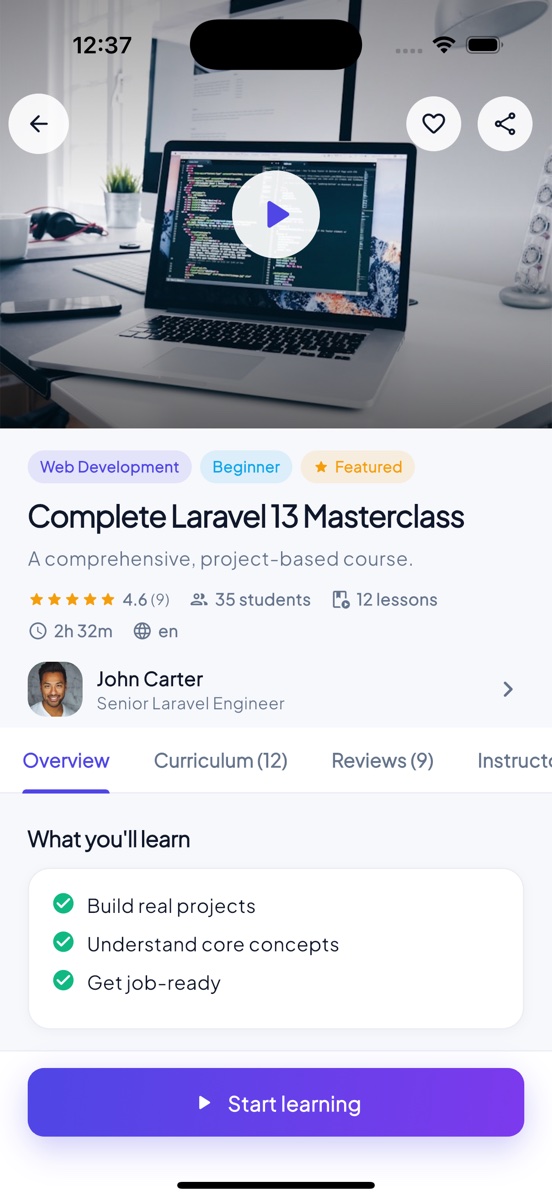
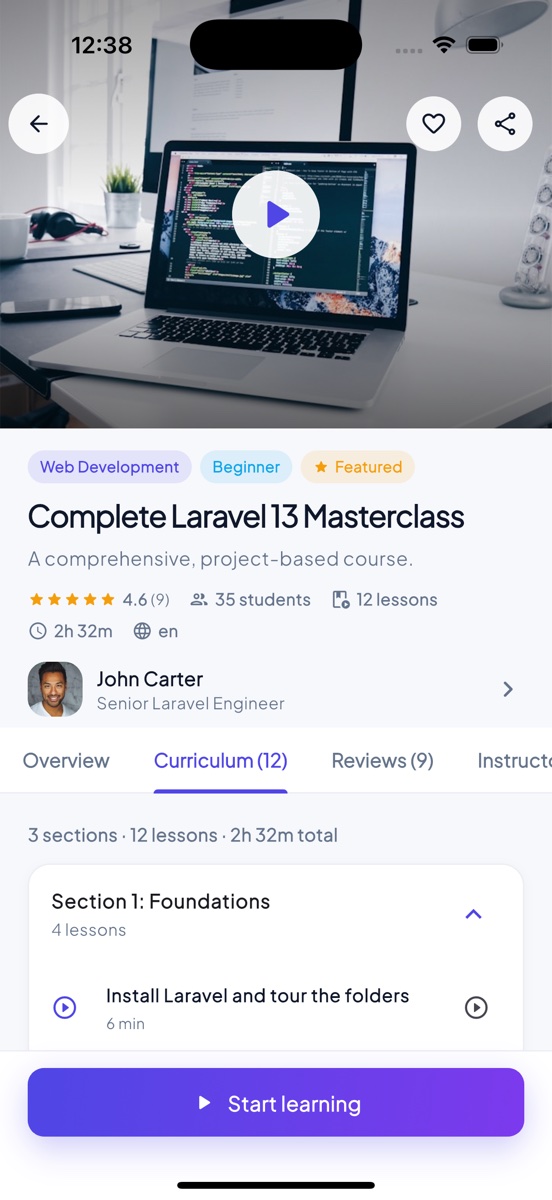
One app, two roles. It talks to the same Laravel install as the website through /api/v1, and
the account that signs in decides what it shows: a student gets the full learning experience,
an instructor gets their teaching dashboard on top of it. A student who watches half a lesson
on their laptop opens the app and carries on from the same second.
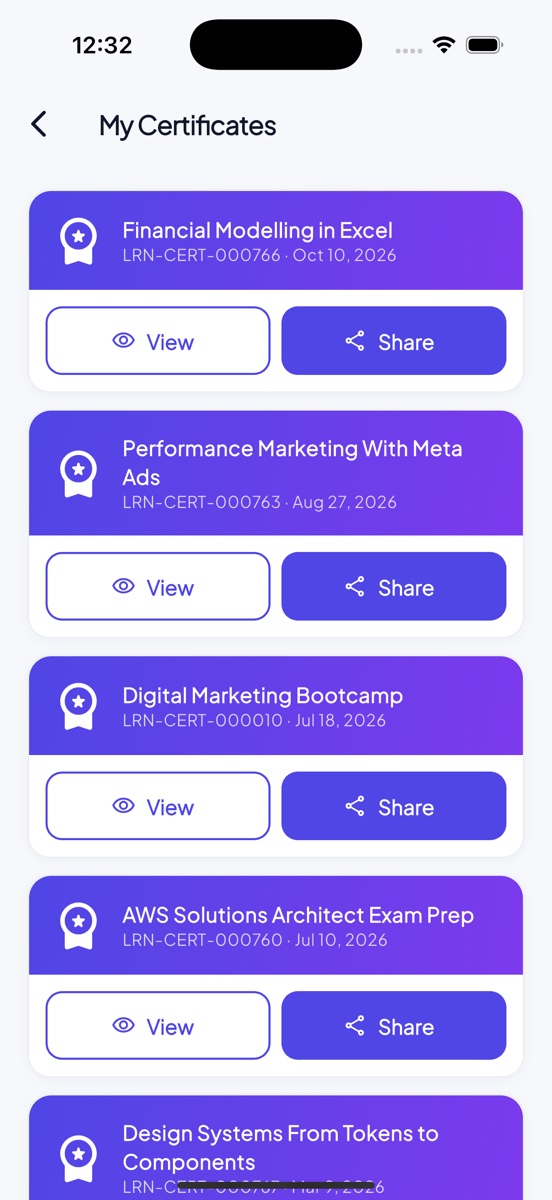
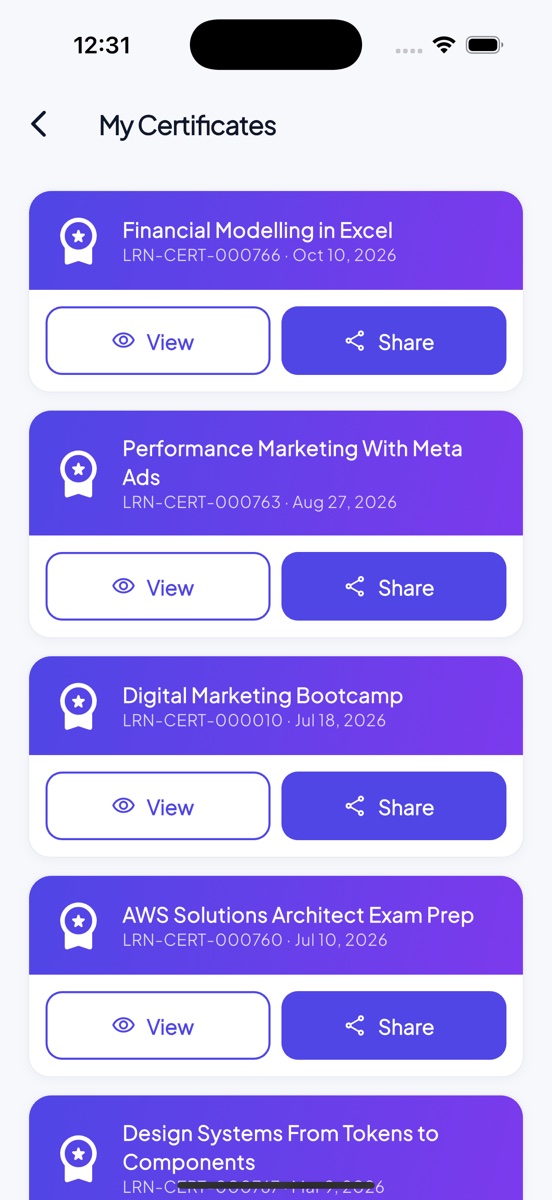
Browse & searchBuyWatchQuizzesAssignmentsCertificatesOffline downloadsLive classesForumsPush
Quizzes render every question type the web builder offers, including “select all that apply” (checkboxes) with the full answer review afterwards. Assignments accept whatever the instructor allows — text, a file or a link — show “Returned” work with the instructor’s feedback and a resubmit button, and lock once graded. Every order has a Download invoice button that opens the printable invoice in the browser without logging in again.
Instructor side. When an instructor signs in, the app adds an Instructor Dashboard: total and this-month earnings with the pending payout, the instructor’s courses with approval status and enrolment counts, recent enrolments and the latest reviews. A Submissions screen lists assignment work from students; the instructor opens the attachment, grades it with marks and feedback, or asks for an AI-suggested grade first. Course creation and the curriculum builder stay on the web — the dashboard links straight to them.
It is built with Flutter 3 and GetX, ships with the Android and iOS projects, and supports light and dark themes plus right-to-left languages.
Screens
Guests can browse if you allow it; everything personal needs an account. The login screen shows one-tap
Student / Instructor demo chips only while the server runs with APP_DEMO=true (they come from
/api/v1/config); on a normal install nothing is shown, so there is nothing to strip before
publishing.
New in 1.3.0. Ask the instructor on every course you have not bought yet (switch it off under Settings → Commerce); the answer arrives in Messages. Choosing Manual / Bank Transfer at checkout shows your payment instructions and asks for the transaction ID and, optionally, a receipt photo or PDF. If staff reject an offline payment, the order shows the reason and a Pay again button. A review waits for approval when review moderation is on, and the app says so.
New in 1.4.0. The app is fully translated into Bangla and Arabic; the learner picks the
language under Profile → Settings, Arabic flips the layout to right-to-left, and dates follow the
language. Every API call sends that language, so server messages and validation errors come back in it too.
The strings live in assets/i18n/bn.json and assets/i18n/ar.json (the English text is the
key). To add another language, copy one of them to assets/i18n/<code>.json, translate the
values, and add the code to AppTranslations.codes in lib/core/i18n/app_translations.dart
and to supportedLocales in lib/app/app.dart. Since 1.6.0 that is only needed for an
offline fallback: the app downloads the site’s catalogue from GET /api/v1/translations/{code}, so
strings edited or imported under Admin → Translations, and languages you add later, reach installed
apps without a new build. After adding app strings to the source, run
php scripts/sync-app-catalogue.php ../Learnify-LMS-App on the server project.
New in 1.6.0. A Private sessions screen (Profile menu, and Book a private
session on instructor profiles): learners book free or paid 1-on-1 slots, pay on the normal payment screen,
join when the room opens, cancel, and mark a finished session complete; instructors publish and remove slots
from the same screen, with times in the device’s time zone. Live classes and private sessions in the
built-in classroom open inside the app with camera and microphone (join / leave attendance); Zoom / Meet links
still open outside. Videos resume where the learner stopped on any device and count watch time, so lessons
with a minimum-watch rule can be completed in the app. Learners edit their notes, course Q&A and forum
posts; instructors send a draft or rejected course for review. Everything new is translated into Bangla and
Arabic. App version 1.6.0+4; it needs a 1.6.0 server for these screens.
New in 1.7.0. Paid events open the normal payment screen for the booked ticket, so the place
is confirmed once the payment goes through. The payment result screen tells the learner when a refund is on its
way (for example, a payment that arrived for an order that was already paid), and Pay again on an order
that is out of date sends the learner back to the cart to check out at today’s price. App version
1.7.0+5; it needs a 1.7.0 server.
On the public meet.jit.si server the instructor has to sign in before a built-in
room starts. For a smooth classroom, add your own Jitsi or JaaS keys under Settings → Live
classroom.
New in 1.5.0. Test series: their course page shows a “Test Series” badge and a
Tests tab listing every test (questions, time, pass mark, exam window), and Explore has a
Type filter (Courses / Test Series). For a live exam the result screen says “Answers
submitted” with the publish time, and scores stay hidden until then. Once results are out, the result screen
shows the merit rank (rank, percentile, highest and average marks) and a subject-wise breakdown with the weakest
subject called out, and opens a new Merit list screen. A new Exam Calendar screen in the
Profile menu lists live, upcoming, waiting-for-results and recent exams. YouTube and Vimeo lessons now
play inside the app (no jump to the YouTube app, “Error 153” fixed), go fullscreen on Android, and the
screen stays awake while a lesson is open. Everything new is translated into Bangla and Arabic. App version
1.5.0+3; it needs a 1.5.0 server for these screens.
Instructor Side
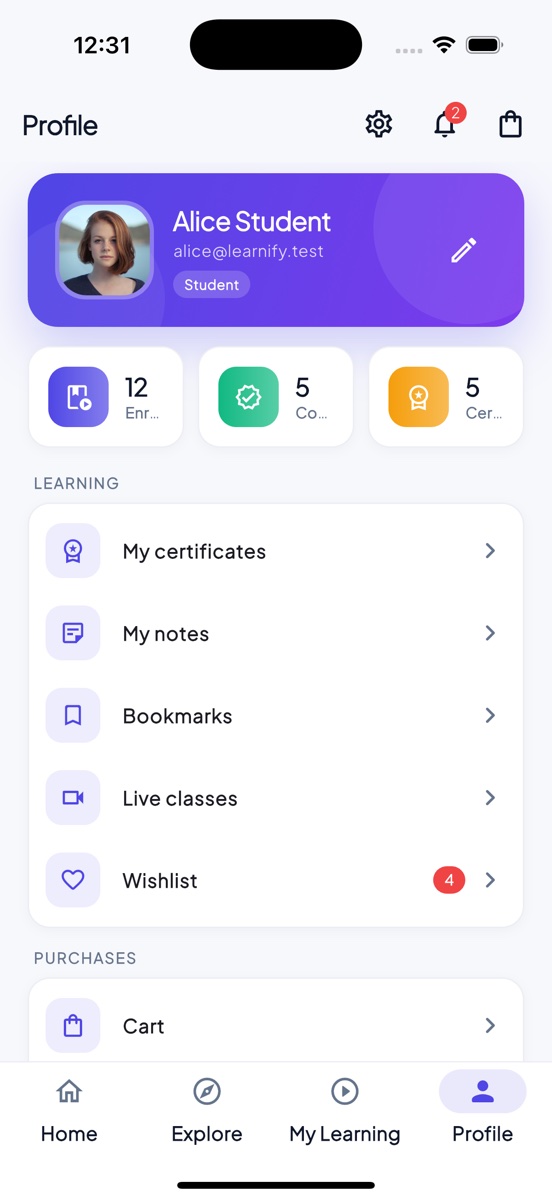
Sign in with an instructor account and the profile tab gains an Instructor Dashboard entry. It is read-and-grade on the phone, build-on-the-web: the app is for keeping an eye on the business and clearing the grading queue between classes, not for authoring.
| Screen | What it shows |
|---|---|
| Dashboard | Earnings total, this month and pending payout · your courses with status and student count · recent enrolments · latest reviews |
| Submissions | Every assignment submission across your courses; open the file or link, enter marks and feedback, or tap AI suggest for a proposed grade (needs the AI module and a key) |
| Create course / Manage on web | Buttons that open the web instructor workspace in the browser, already signed in |
Instructors also have everything a student has — they can enrol in other courses, take quizzes and earn certificates from the same account.
Requirements
| Tool | Version |
|---|---|
| Flutter | 3.44.0 stable (Dart 3.12.0) — the version the app is built and tested with; any newer stable release also works. |
| Android Studio | Latest, with the Android SDK and a device or emulator |
| Xcode | Latest, on macOS — required for iOS builds only |
| Android support | Android 6.0 (API 23) and above |
| iOS support | iOS 13 and above |
Check your setup with flutter doctor before anything else.
Open the Project
The Flutter project is the AppSourceCode folder in the download.
cd AppSourceCode
flutter pub get
flutter run
On iOS you may also need cd ios && pod install the first time.
Point It at Your Site
The app reads its API location from a build-time define, so you never edit source to switch between your local machine, staging and production.
flutter run --dart-define=API_URL=https://yourdomain.com
| Define | Default | What it is |
|---|---|---|
API_URL | http://10.0.2.2:8000 | Your site, no trailing slash. The app appends /api/v1. |
APP_NAME | Learnify | Fallback name before the app has fetched your settings. |
DEEP_LINK | learnify | The scheme hosted payment pages use to return to the app. Must match Settings → Mobile App. |
ENABLE_PUSH | false | Turn on once Firebase is configured. |
Use HTTPS in production. Both Android and iOS block plain HTTP by
default, and video playback in particular will fail silently over http://.
Testing against a local server? The Android emulator reaches your machine at
10.0.2.2, the iOS simulator at 127.0.0.1, and a physical device needs your
computer's LAN address.
App Name, Id & Icon
Three things you cannot change after publishing — set them before your first store upload.
-
Application id / bundle id
Android:
applicationIdandnamespaceinandroid/app/build.gradle.kts. iOS: the bundle identifier in Xcode. The package ships ascom.learnify.lmson both platforms; change it to your own reverse-domain id, for examplecom.yourcompany.yourapp, before publishing (Firebase needs the same id). -
Display name
Android:
android:labelinandroid/app/src/main/AndroidManifest.xml. iOS:CFBundleDisplayNameinios/Runner/Info.plist. -
Launcher icon
Replace the source image under
assets/and regenerate:
flutter pub run flutter_launcher_icons
Colours & Logo
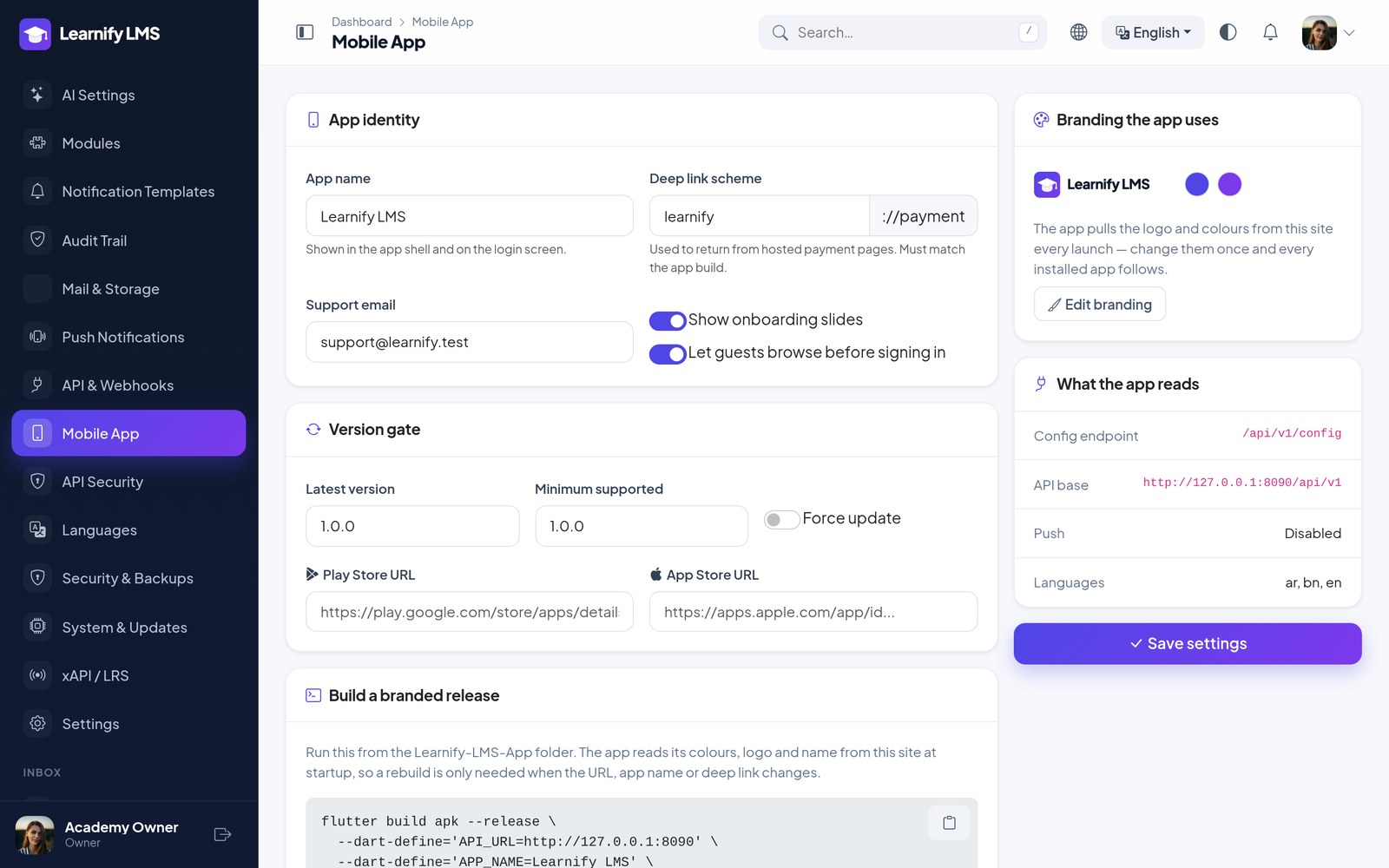
You do not rebuild the app to rebrand it. On every launch it calls /api/v1/config and repaints
itself with the colours from your site branding and the logo from Settings → Mobile App → App logo
(a square mark uploaded just for the app; the site logo is used when there is none).
That means you can change the primary colour on a Tuesday afternoon and every installed copy follows on its next launch. Only the app name, id and launcher icon need a new build.
Push Notifications
Push needs a Firebase project. The full walkthrough — project, config files, APNs key and the service account JSON — is in Common Setup.
Once Firebase is in place, build with:
flutter build apk --release \
  --dart-define=API_URL=https://yourdomain.com \
  --dart-define=ENABLE_PUSH=true
Android Build
1. Create a release keystore (once, on your machine — not in the project folder):
keytool -genkey -v -keystore ~/learnify-release.jks \
        -keyalg RSA -keysize 2048 -validity 10000 -alias learnify
2. Tell Gradle where it is. Copy android/key.properties.example to
android/key.properties and fill in the four values:
storePassword=your_keystore_password
keyPassword=your_key_password
keyAlias=learnify
storeFile=/Users/you/learnify-release.jks
android/app/build.gradle.kts already reads this file and wires it into the release
signingConfig (with code shrinking and ProGuard rules turned on). Nothing else to edit:
signingConfigs { create("release") { /* filled from key.properties */ } }
buildTypes { release { signingConfig = signingConfigs.getByName("release") } }
Without key.properties a release build stops with a message
rather than silently signing with the debug key (which Google Play rejects). For a throw-away test build
you can pass -PallowDebugSigning=true. Keep the keystore and its passwords backed up —
losing them means you can never update that listing again.
3. Build the App Bundle for Play (or an APK for testing). --obfuscate scrambles Dart
symbols in the binary and --split-debug-info keeps the symbol files locally so crash reports stay readable:
flutter build appbundle --release \
        --obfuscate --split-debug-info=build/symbols \
        --dart-define=API_URL=https://yourdomain.com \
        --dart-define=DEEP_LINK=yourscheme
# debug-signed APK for testing only:
flutter build apk --release -PallowDebugSigning=true --dart-define=API_URL=https://yourdomain.com
The bundle lands in build/app/outputs/bundle/release/. Upload it in Play Console →
Production (or Internal testing first), fill in the store listing, and submit.
iOS Build & App Store
You need a Mac with Xcode and a paid Apple Developer Program membership.
Bundle identifier
Open
ios/Runner.xcworkspacein Xcode. Select Runner → Signing & Capabilities, set your Team and a unique Bundle Identifier (e.g.com.yourcompany.learnify). Tick Automatically manage signing — Xcode then creates the development certificate and provisioning profile for you.Capabilities
Add Push Notifications and Background Modes → Remote notifications (needed for FCM). Upload your APNs key to Firebase as described in Common Setup.
App Store Connect record
At appstoreconnect.apple.com → Apps → +, create the app with the same bundle identifier, a name and the primary language.
Distribution signing
With automatic signing, Xcode also creates the Apple Distribution certificate and App Store provisioning profile when you archive. If your account manages them manually, create both under Certificates, Identifiers & Profiles and select the profile under Signing & Capabilities → Release.
Archive
flutter build ipa --release \
        --obfuscate --split-debug-info=build/symbols \
        --dart-define=API_URL=https://yourdomain.com \
        --dart-define=DEEP_LINK=yourscheme
The archive is written to
build/ios/archive/Runner.xcarchiveand the.ipatobuild/ios/ipa/.Upload
Either open the archive in Xcode (Window → Organizer → Distribute App → App Store Connect) or drag the
.ipainto the Transporter app. Processing takes a few minutes; the build then appears under TestFlight.Submit for review
Attach the build to the version in App Store Connect, add screenshots (6.7″ and 5.5″ iPhone, plus 12.9″ iPad since the app supports tablets), the privacy policy URL, and demo account credentials in App Review Information.
App Review asks what the app does and how to see it. Give them a demo account with a purchased course, or they cannot get past the paywall and will reject the build.
Version Gate
Settings → Mobile App has a version gate: set the latest version and the minimum supported one. An app older than the minimum shows a blocking update prompt with your store link; anything between the two shows a dismissible notice. Use it when an API change makes old builds break.
Troubleshooting
| Symptom | Cause and fix |
|---|---|
| Spinner forever on launch | The app cannot reach API_URL. Open https://yourdomain.com/api/v1/config in a browser — it should return JSON. |
| Works on emulator, not on a device | localhost means the device itself. Use your LAN address for testing, or the real domain. |
| Login says invalid credentials | The account works on the website but has no student role, or the site is behind basic auth the app cannot pass. |
| Video does not play | Almost always plain HTTP. Both platforms block it. Serve video over HTTPS. |
| YouTube lesson shows a player error | The video's owner has disabled embedding, or it is age restricted. Use an unlisted video you control. |
| Push never arrives | Work through the checklist in Common Setup. |
| Payment does not return to the app | DEEP_LINK in the build does not match Settings → Mobile App. |
| Colours did not change | Branding is fetched at launch. Fully close and reopen the app. |