Common Setup
Mail, storage, cron, queues, Firebase and APNs — the parts the website and the app both depend on.
Item: Learnify LMS
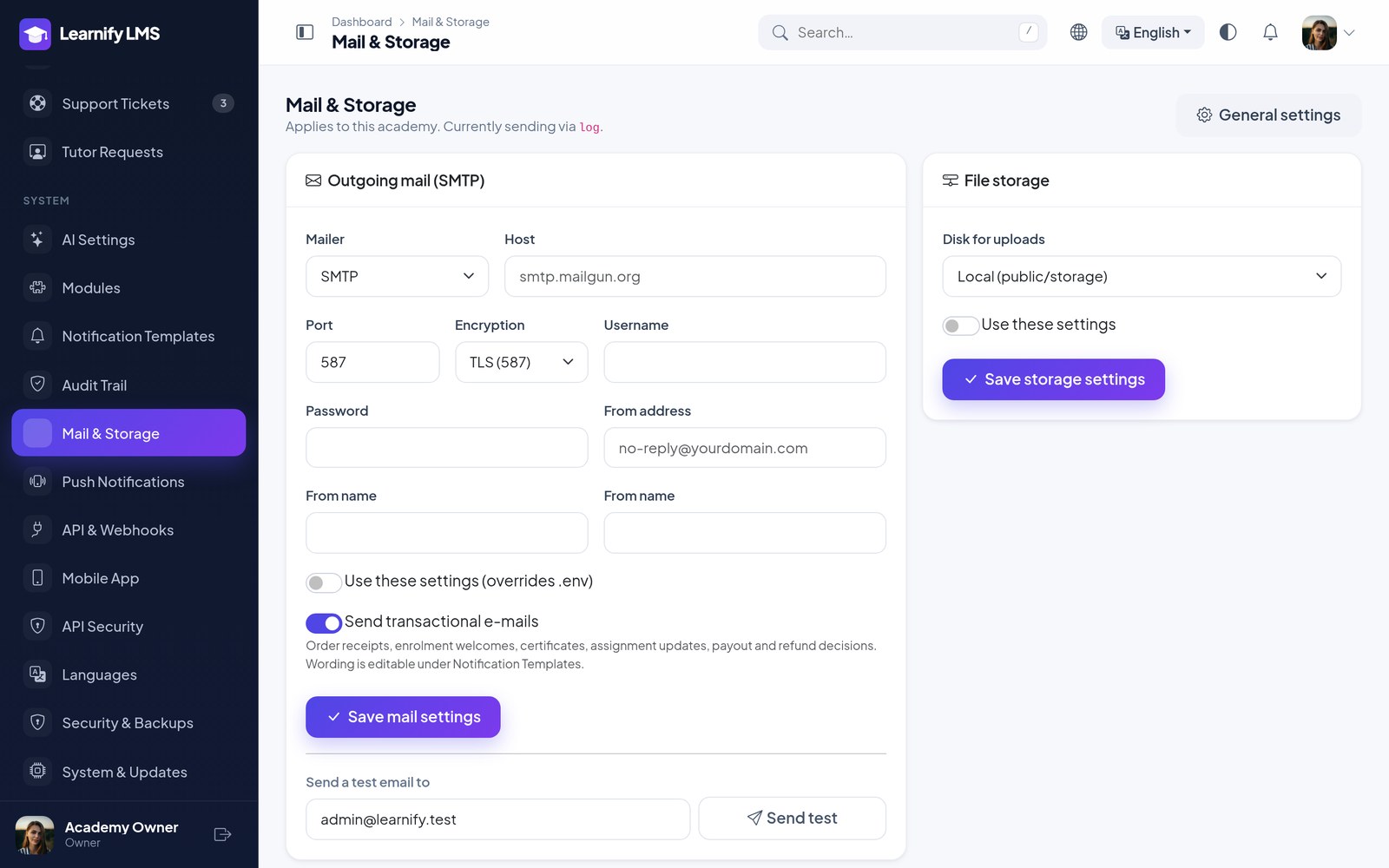
Mail (SMTP)
Email is not optional — registration, password resets, order receipts, enrolment welcomes, certificate
notices, assignment and live-class updates, payout and refund decisions and campaign sends all go through it. Configure it under Settings → Mail & Storage, or in
.env if you prefer.
| Setting | Typical value |
|---|---|
| Host | smtp.yourprovider.com |
| Port | 587 (TLS) or 465 (SSL) |
| Encryption | tls |
| Username / password | The mailbox credentials from your provider |
| From address | An address on your own domain, with SPF and DKIM set |
Sending from a Gmail or Yahoo address on a different domain is the most common reason mail lands in spam. Use an address on the domain the site runs on.
There is a send test email button on the same page — use it before you go further.
File Storage
Uploads — course thumbnails, lesson videos, resources, certificates, avatars — go to the local disk by default. That is fine to start with. For anything at scale, switch to S3 or an S3-compatible provider on the same settings page.
On a fresh manual install (not through the wizard) create the public symlink once:
php artisan storage:link
You can also cap how much a single account may upload, under the same settings group.
Cron & Scheduler
Everything scheduled — drip lesson release, email campaigns, live-class reminders, payout processing, certificate issuing, backups, cleanup and (since 1.7.0) the 10-minute re-check of payments awaiting gateway confirmation — runs without a cron job since 1.6.0: due tasks run while people use the site (a missed one runs on the next visit). For exact timing on a quiet site, add one cron entry; it takes over automatically:
* * * * * cd /path/to/your/site && php artisan schedule:run >> /dev/null 2>&1
On shared hosting, cPanel's Cron Jobs screen accepts the same line. Use the
full path to PHP 8.3 if the default php is older.
Live exams. The scheduler also runs quizzes:publish-results. A quiz
with a Publish results at time keeps scores hidden (“Answers submitted”) until that command
releases them; without cron this happens on the first visit after the publish time.
If your host can only open a web address on a timer (cPanel wget, cron-job.org), use the secret cron
address shown on System → Health. That page shows whether the scheduler runs on site visits or from
your cron, and when it last ran.
Queue Worker
Slow work — campaign sends, large report exports, webhook delivery — is queued on the
database driver the installer sets. Since 1.6.0 no worker is required: waiting jobs are processed
for a few seconds after page visits. For a busy site or large campaigns, run a worker under Supervisor; once it
is running the site stops processing jobs on visits by itself:
[program:learnify-worker]
command=php /path/to/your/site/artisan queue:work --sleep=3 --tries=3 --max-time=3600
autostart=true
autorestart=true
user=www-data
numprocs=2
redirect_stderr=true
stdout_logfile=/path/to/your/site/storage/logs/worker.log
Firebase Project
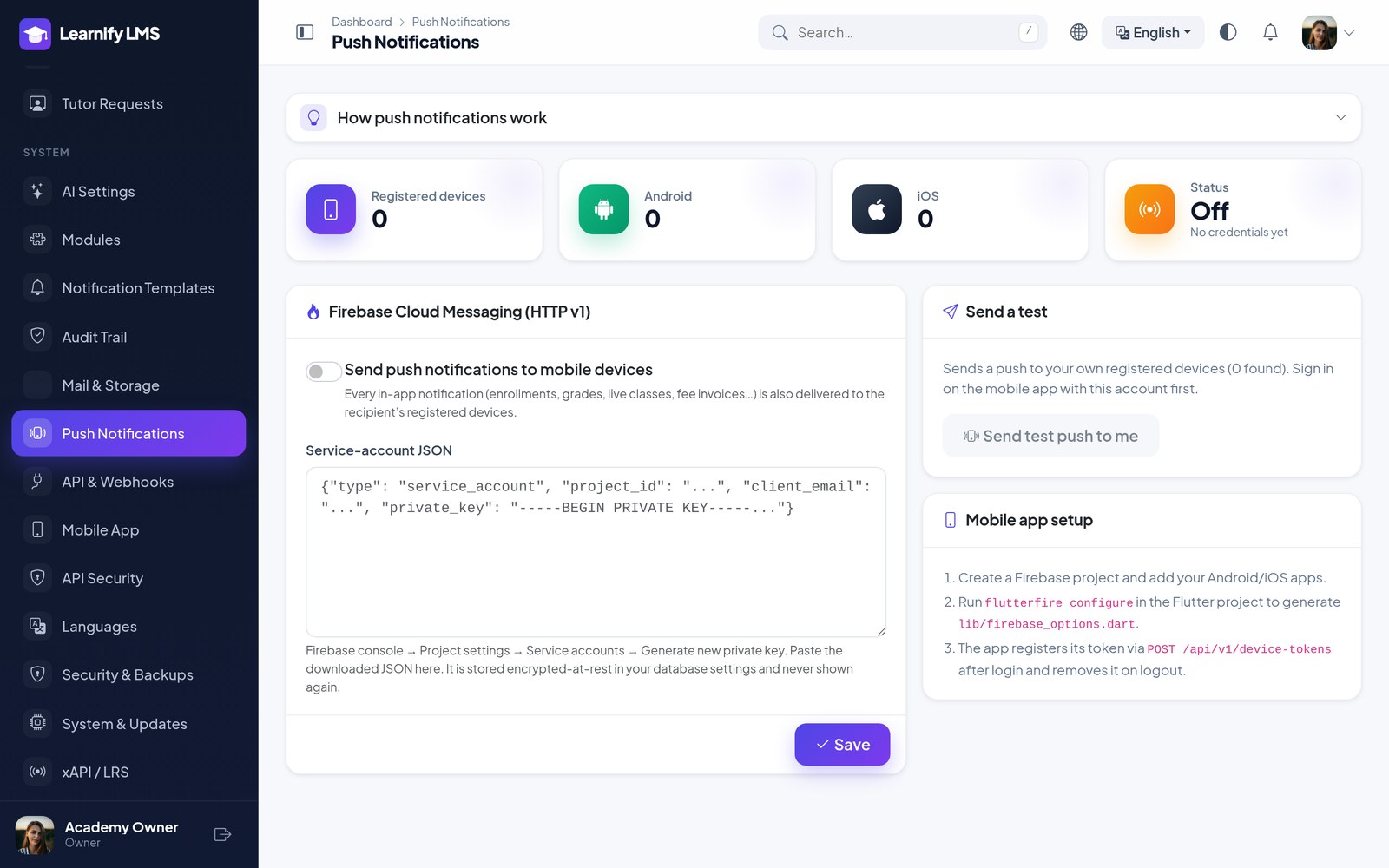
Push notifications — browser and app — go through Firebase Cloud Messaging. Skip this section entirely if you do not want push.
Create the project
At
console.firebase.google.com, create a project. Analytics is optional.Add the Android app
Use the same application id as the Flutter project. Download
google-services.json.Add the iOS app
Use the same bundle id. Download
GoogleService-Info.plist.Create a service account
Project settings → Service accounts → Generate new private key. That JSON goes into the admin panel.
Paste it into Learnify
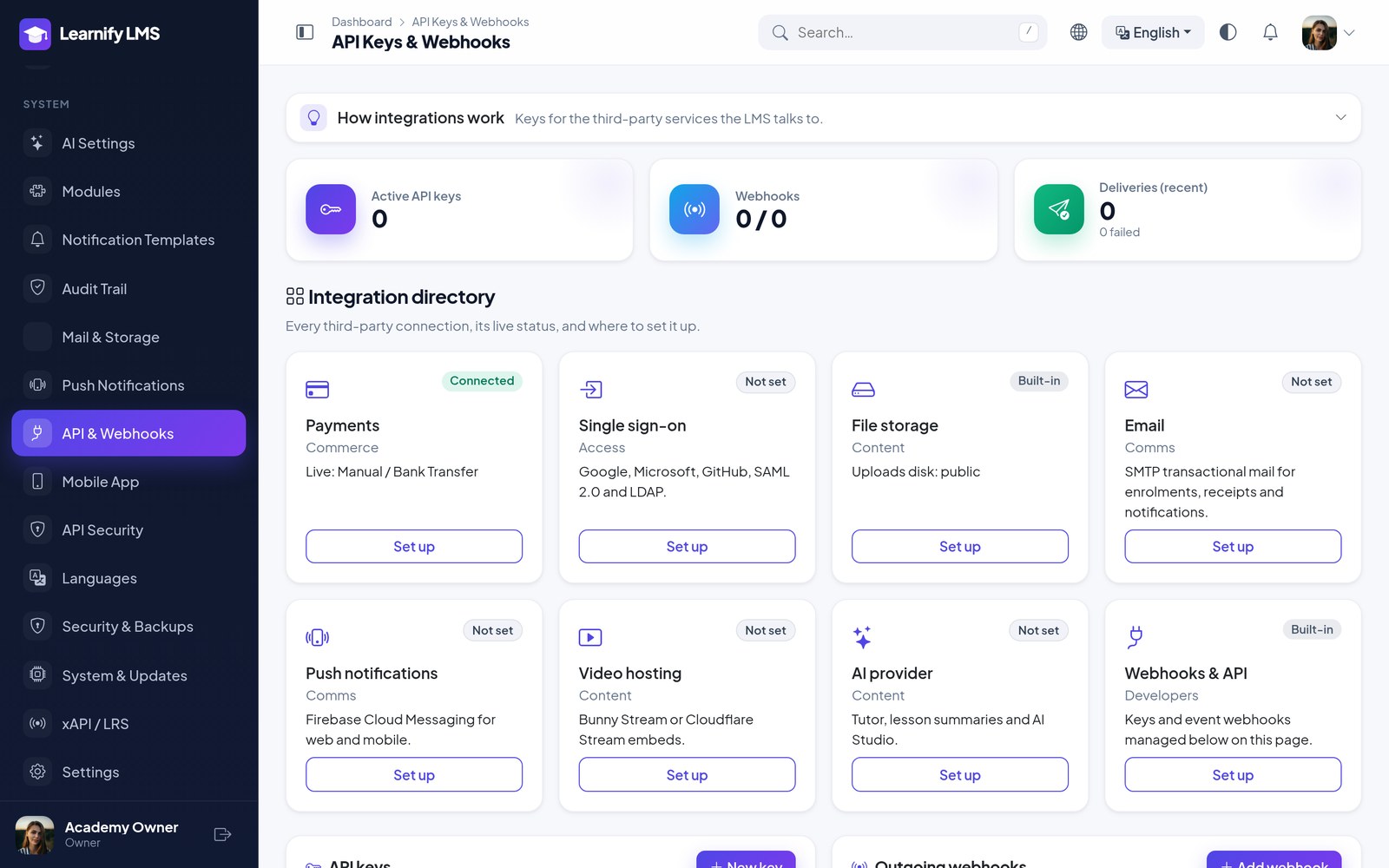
Settings → Integrations → Firebase. Paste the service account JSON and switch push on.
Android
Drop google-services.json into the Flutter project at:
AppSourceCode/android/app/google-services.json
Then rebuild. If the file is missing the app still runs — it just will not receive push.
iOS & APNs
iOS needs one extra step that Android does not: Apple has to authorise Firebase to send to your app.
Create an APNs key
In the Apple Developer portal: Certificates, Identifiers & Profiles → Keys. Enable Apple Push Notifications service and download the
.p8. You can only download it once.Upload it to Firebase
Project settings → Cloud Messaging → APNs Authentication Key. You will need the Key ID and your Team ID.
Add the plist
Put
GoogleService-Info.plistinAppSourceCode/ios/Runner/and add it to the Runner target in Xcode.Turn on the capability
In Xcode, under Signing & Capabilities, add Push Notifications and Background Modes → Remote notifications.
Push does not work on the iOS Simulator. Test it on a real device.
Testing a Push
Sign in on a device, then send from Marketing → Push in the admin panel. If nothing arrives, check in this order:
- The device registered a token — it appears under the user in the admin panel.
- Push is enabled in Settings → Integrations and the service account JSON is valid.
- The app was granted notification permission on the device.
- On iOS: the APNs key is uploaded to Firebase and the build is a real device build, not the Simulator.
Video Sources
A lesson can take its video from any of these, chosen per lesson — you are not locked into one:
| Source | When to use it |
|---|---|
| YouTube / Vimeo | Fastest to start; the platform handles delivery. Unlisted videos work. |
| Google Drive | Paste the share link (set to “Anyone with the link”); the Drive player is embedded. Handy for small teams; not protected. |
| Direct URL | An MP4 you host anywhere reachable over HTTPS. |
| HLS (.m3u8) | Adaptive streaming from your own encoder or CDN. |
| Uploaded file | Stored on your disk and served through a signed, range-aware endpoint so the URL cannot simply be copied. |
| Bunny Stream / Cloudflare Stream | Managed video hosting with signed playback. Add the keys under Integrations. |
Uploaded and managed-provider videos are the only ones that are genuinely protected. A YouTube or plain-URL video can always be opened directly by someone who wants to.
Subtitles can be attached per lesson as WebVTT files, and SCORM 1.2 / 2004 packages can be uploaded as a lesson type of their own.
Upload Limits
If large lesson uploads fail, it is almost always PHP rather than the application. Raise these in
php.ini and restart PHP:
upload_max_filesize = 512M
post_max_size = 512M
max_execution_time = 600
memory_limit = 512M
Nginx also needs client_max_body_size 512M; in the server block.